EXOS STP

EXOS VM 22.6.1.4:

!!!!  NOTE: Spanning Tree default changed in ExtremeXOS 22.2  !!!!

Multiple Spanning Tree Protocol (MSTP) is enabled by default to prevent broadcast storms

Would you like to disable MSTP? [y/N/q]:

* EXOS-VM.3 # show stpd
MSTP Global Configuration:
MSTP Region Name        : 0c7216bd8e00
MSTP Format Identifier  : 0
MSTP Revision Level     : 3
MSTP Digest             : ac:36:17:7f:50:28:3c:d4:b8:38:21:d8:ab:26:de:62
Common and Internal Spanning Tree (CIST)        : s0
Total Number of MST Instances (MSTI)            : 0

Name       Tag  Flags  Ports Bridge ID        Designated Root  Rt Port Rt Cost
s0         0000 EM—-    12 80000c7216bd8e00 80000c7216bd8e00 ——-       0

Total number of STPDs: 1                STP Flush Method: VLAN and Port
STP BPDU Forwarding: On
STP Multicast Send IGMP or MLD Query: On

Flags: (C) Topology Change, (D) Disable, (E) Enable, (R) Rapid Root Failover
(T) Topology Change Detected, (M) MSTP CIST, (I) MSTP MSTI

* EXOS-VM.5 # show stpd detail

Stpd: s0                Stp: ENABLED            Number of Ports: 12
Rapid Root Failover: Disabled
Operational Mode: MSTP                  Default Binding Mode: 802.1D
MSTI Instance:  CIST
802.1Q Tag: (none)
Ports: 1,2,3,4,5,6,7,8,9,10,
11,12
Participating Vlans: Default
Auto-bind Vlans: Default
Bridge Priority            : 32768              Bridge Priority Mode: 802.1t
Operational Bridge Priority: 32768
BridgeID                   : 80:00:0c:72:16:bd:8e:00
Designated root            : 80:00:0c:72:16:bd:8e:00
CIST Root                  : 80:00:0c:72:16:bd:8e:00
CIST Regional Root         : 80:00:0c:72:16:bd:8e:00
External RootPathCost      : 0  Internal RootPathCost: 0
Root Port   : —-
MaxAge      : 20s       HelloTime     : 2s      ForwardDelay     : 15s
CfgBrMaxAge : 20s       CfgBrHelloTime: 2s      CfgBrForwardDelay: 15s
RemainHopCount: 20      CfgMaxHopCount: 20
Topology Change Time           : 35s            Hold time        : 1s
Topology Change Detected       : FALSE          Topology Change  : FALSE
Number of Topology Changes     : 0
Time Since Last Topology Change: 0s
Topology Change initiated locally on Port none
Topology Change last received on Port none from none
Backup Root               : Off         Backup Root Activated  : FALSE
Loop Protect Event Window : 180s        Loop Protect Threshold : 3
New Root Trap             : On          Topology Change Trap   : Off
Tx Hold Count             : 6
Participating VLANs:
VLAN                                     Tag    Number of Ports
Ports
——————————————————————————-
Default                                  1      12
1(F),2(F),3(F),4(F),5(F),6(F),7(F),8(F),
9(F),10(F),11(F),12(F)
Flags: B-Blocking, D-Disabled, F-Forwarding, I-Listening, L-Learning

* EXOS-VM.6 # show stpd s0 ports
Port     Mode   State      Cost  Flags     Priority Port ID Designated Bridge
1      802.1D FORWARDING 200000 eDappw–B- 128      8001    80:00:0c:72:16:bd:8e:00
2      802.1D FORWARDING 200000 eDappw–B- 128      8002    80:00:0c:72:16:bd:8e:00
3      802.1D FORWARDING 200000 eDappw–B- 128      8003    80:00:0c:72:16:bd:8e:00
4      802.1D FORWARDING 200000 eDappw–B- 128      8004    80:00:0c:72:16:bd:8e:00
5      802.1D FORWARDING 200000 eDappw–B- 128      8005    80:00:0c:72:16:bd:8e:00
6      802.1D FORWARDING 200000 eDappw–B- 128      8006    80:00:0c:72:16:bd:8e:00
7      802.1D FORWARDING 200000 eDappw–B- 128      8007    80:00:0c:72:16:bd:8e:00
8      802.1D FORWARDING 200000 eDappw–B- 128      8008    80:00:0c:72:16:bd:8e:00
9      802.1D FORWARDING 200000 eDappw–B- 128      8009    80:00:0c:72:16:bd:8e:00
10     802.1D FORWARDING 200000 eDappw–B- 128      800a    80:00:0c:72:16:bd:8e:00
11     802.1D FORWARDING 200000 eDappw–B- 128      800b    80:00:0c:72:16:bd:8e:00
12     802.1D FORWARDING 200000 eDappw–B- 128      800c    80:00:0c:72:16:bd:8e:00

Total Ports: 12

————————- Flags: —————————-
1:                e=Enable, d=Disable
2: (Port role)    R=Root, D=Designated, A=Alternate, B=Backup, M=Master
3: (Config type)  b=broadcast, p=point-to-point, e=edge, a=auto
4: (Oper. type)   b=broadcast, p=point-to-point, e=edge
5:                p=proposing, a=agree
6: (partner mode) d = 802.1d, w = 802.1w, m = mstp
7:                i = edgeport inconsistency
8:                S = edgeport safe guard active
s = edgeport safe guard configured but inactive
8:                G = edgeport safe guard bpdu restrict active in 802.1w and mstp
g = edgeport safe guard bpdu restrict active in 802.1d
9:                B = Boundary, I = Internal
10:               r = restricted role, t = active role

* EXOS-VM.8 # show config stp detail
#
# Module stp configuration.
#
configure mstp region 0c7216bd8e00
configure mstp revision 3
configure mstp format 0
create stpd s0
configure stpd s0 delete vlan default ports all
configure stpd s0 mode mstp cist
configure stpd s0 forwarddelay 15
configure stpd s0 hellotime 2
configure stpd s0 maxage 20
configure stpd s0 max-hop-count 20
configure stpd s0 priority-mode dot1t
configure stpd s0 priority 32768
configure stpd s0 default-encapsulation dot1d
configure stpd s0 loop-protect event-window 180
configure stpd s0 loop-protect event-threshold 3
configure stpd s0 backup-root off
configure stpd s0 trap new-root on
configure stpd s0 trap topology-change off
configure stpd s0 trap topology-change edge-ports off
configure stpd s0 tx-hold-count 6
enable stpd s0 auto-bind vlan Default
enable stpd s0
configure stpd flush-method vlan-and-port
configure stpd bpdu-forwarding on
configure stpd multicast send-query on

After adding another EXOS switch with two inter-switch links between them forming a looped topology, the second port on the non-root bridge is BLOCKING as expected.

EXOS-VM.2 # show stpd s0 p
Port     Mode   State      Cost  Flags     Priority Port ID Designated Bridge
1      802.1D FORWARDING 200000 eRapam–B- 128      8001    80:00:0c:72:16:86:e7:00
2      802.1D BLOCKING   200000 eAapam–B- 128      8002    80:00:0c:72:16:86:e7:00


XMC NAC Troubleshooting

RADIUS requests/responses

tcpdumpi eth0 port 1812

tcpdump: verbose output suppressed, use -v or -vv for full protocol decode

To capture the packets:-

tcpdump –i eth0 –s 0 –w capture.pcap (End capture with “Control+C”)

NAC Device Help (type nachelp):

Extreme Networks NetSight NAC Device Help
/var/log/tag.log                – NAC Log File
/var/log/syslog                 – System Log File
/var/log/message                – System Info
/var/log/radius/*               – RADIUS Logs
/var/log/squid/*                – Squid Logs
/etc/resolv.conf                – DNS Configuration

nacdb                           NAC Database Script
naccapture                      Protocol-specific packet capture
nacstatus                       General NAC Appliance Status
nacreinitializedb               Deletes NAC database, restarts appliance
nacconfig                       Configures Network
nacradiuslogging enable|disable Enable/disable NAC RADIUS logging
nacctl start|stop|restart       Start/stop/restart NAC processes
aglsctl start|stop|restart      Start/stop/restart agentless assessment
/opt/nac/configMgmtIP <ip>      Set management server IP address

CTRL+ALT+<F1-F4> provides access to multiple login shells.

NAC Troubleshooting Tips:

https://gtacknowledge.extremenetworks.com/articles/How_To/NAC-Troubleshooting-Tips-Debug-methodology-for-Authentication-issues/?q=nac+tips&l=en_US&fs=Search&pn=1

Common Trace examples:

https://gtacknowledge.extremenetworks.com/articles/How_To/NAC-Troubleshooting-Tips-common-tcpdump-commands-used-for-isolating-issue?q=nac+tips&l=en_US&fs=Search&pn=1

Switch-Port Information:

https://gtacknowledge.extremenetworks.com/articles/How_To/NAC-Troubleshooting-Tips-Debug-Methodology-for-Switch-Port-Information/?q=nac+tips&l=en_US&fs=RelatedArticle

WebView:

https://IP_CONTROL_APPLIANCE:8443   (admin/Extreme@pp)

XMC Show Support:

Administration>Diagnostics>Generate Show Support

Files stored in following folder…

/usr/local/Extreme_Networks/NetSight/appdata/ShowSupport

Data and Time:

Check the date and time by typing date command on CLI.

Note: Clock skews can affect authentication if the clock has drifted too far.


XMC NAC EAP Error TLS Cipher

If seeing the error below in the Status Description field under Events for end-systems after upgrading NAC (>7.0) try the listed parameters to the engine.

eap_tls: TLS Alert write:fatal:handshake failure eap_tls: SSL says: error:1408A0C1:SSL
routines:ssl3_get_client_hello:no shared cipher eap_tls: SSL_read failed in a system call (-1), TLS session  failed eap_tls: TLS receive handshake failed during operation eap_tls: [eaptls process] = fail eap: Failed continuing EAP TLS (13) session. EAP sub-module failed

Apply these two Appliance Properties to the NAC appliance:

RADIUS_TLS_REMOVE_RC4_CIPHERS=false

RADIUS_TLS_CIPHER_LIST=DEFAULT

TLS-CipherNote: This was helpful for the XP test machine I was using.

XMC NAC Host Lookup

When using the “LDAP Host Group” component of a NAC rule, it means that the Hostname resolved by NAC must be present in the LDAP server’s database in order to match that component.  If the Hostname was resolved only by DHCP,  and therefore has no FQDN, chances are the LDAP lookup will fail.  In this case you can try changing the Host Search Attribute in the associated LDAP Config from “dNSHostName” to “name”.

Name

How to do EAP-TLS with Control

Using certificates is more secure than just using the username and password for authentication.

EAP-TLS.PNG

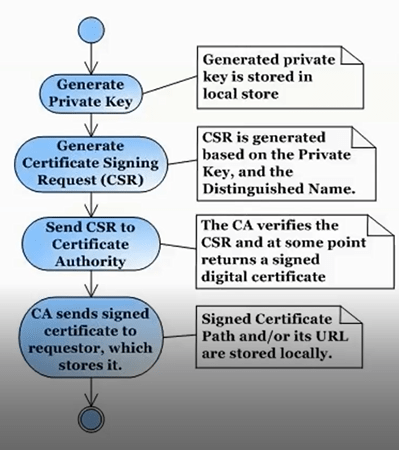
What is needed for Certificate:

Private key generated by CLI or Browser.

CSR generated by CLI or Browser.

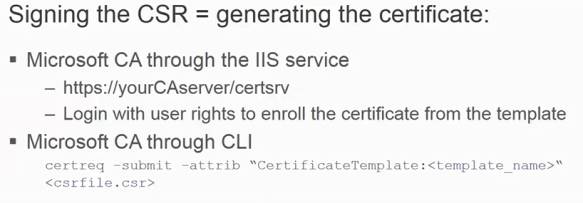
CA will generate the certificate based on CSR through CLI or Browser.

Cert.PNG

privatekey.PNG

Generate a Server Private Key

Use the following steps to generate an encrypted RSA private key.

1.Enter the following command to use OpenSSL to generate a password-encrypted PKCS #8 formatted server private key file. Use the key size and output file name you prefer. (If you are unsure of the key size, use 2048.)

openssl genrsa <key size> | openssl pkcs8 -topk8 -out <output file>

For example:

openssl genrsa 2048 | openssl pkcs8 -topk8 -out server.key

2.You will be prompted for an Encryption Password. Be sure to make a note of the password that you enter. If the password is lost, you will need to generate a new server private key and a new server certificate.

keyexample.PNG

csr.PNG

CN should use the FQDN of the ACE.

Create a Certificate Signing Request

Use the following steps to create a Certificate Signing Request (CSR).

1.Enter the following command to generate a CSR file. Use the output file name you used in step 1 above as the input file, and specify the output file name you prefer:

openssl req -new -key <input file> -out <output file>

For example:

openssl req -new -key server.key -out server.csr

2.You will be prompted for information that will appear in the certificate. When you are prompted for a Common Name, specify the fully qualified host name of the NAC appliance. For example:

Common Name (eg, YOUR name) []:nac1.mycompany.com

If you are creating a client and/or server certificate CSR request for use with PEAP or EAP-TLS, you may need to add an extension to the command used to generate the CSR file. Server and client certificates require an extension in order to operate as intended. Verify with your certificate vendor whether they require that the extensions are part of the CSR or are included in the certificate when the request is made. The following are command examples of the CSR request that include each of the extension options available.

•If the CSR is for the NAC appliance, the command must include:
openssl req -new -reqexts server_auth -key <input file> -out <output file>
•If the CSR is for a client, the command must include:
openssl req -new -reqexts client_auth -key <input file> -out <output file>
•If the CSR is for both the NAC appliance and client, the command must include:
openssl req -new -reqexts server_and_client_auth -key <input file> -out <output file>

csrexample.PNG

Verify CSR by openSSL:

openssl req -text -noout -verify -in <csrfile.csr>

Submit the Request to a Certificate Authority

The procedure for submitting a CSR to a Certificate Authority (CA) varies with the service used. Usually, it is done through a website using a commercial service such as VeriSign. You can also use an in-house CA, which generates certificates used internally by your enterprise. You will provide information including the contents of the CSR, and receive back one or more files containing the server certificate and possibly other certificates to be used in a chain.

signcsr.PNG

requestcert.PNG

advcertreq

submitcertreq.PNG

csr+template.PNG

downloadcert

mangecert.PNG

updateradiuscert.PNG

key+cert

key+cert+pwd

trustedca.PNG

updateaaatrustedcert

Install certificate to client computer by GPO which is transparent for users. There should be a user certificate (in Certificates – Current User : Personal>Certificates) and a CA certificate installed (in Trusted Root Certificate Authorities) on the client.

Note: Some browsers may prevent you from seeing and choosing different settings such as key length when asking for the User certificate. Verify the certificate is installed using run mmc and add certificates snap-in. Also open the installed certificate and look at the details to gather more detail.


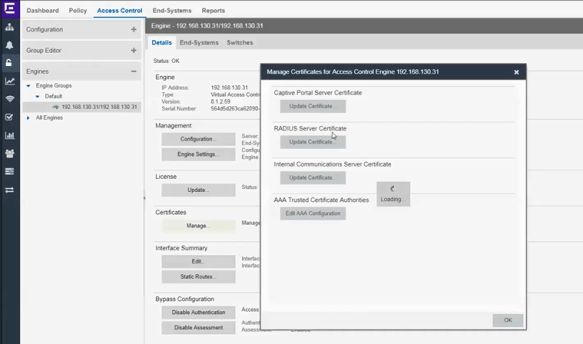
Certificate Configuration (XMC)

During installation, Access Control generates a unique private key and server
certificate for the NAC Manager RADIUS server. This certificate provides basic
functionality while you are configuring and testing your NAC Manager
deployment. To integrate with the certificate structure you already have on your
network, update to a certificate generated by a Certificate Authority that your
connecting end-systems are already configured to trust.

Update RADIUS Server Certificate Window

The RADIUS server certificate is the certificate sent to end-systems during
certain forms of 802.1X authentication. If the appliance RADIUS server will proxy
all 802.1X authentication requests, then certificates are not used. If the appliance
RADIUS server can terminate 802.1X authentication requests, then certificates
will be used if you are using EAP-TLS, PEAP, or EAP-TTLS authentication. The
Update RADIUS Server Certificate window in NAC Manager lets you replace the
server certificate.

Refer to hep topic How to Update Access Control Engine Server Certificates in Extreme Management Center (Legacy) in the EMC NAC Manager User Guide.

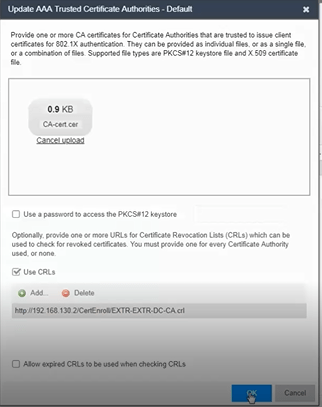
In addition, to configure the AAA Trusted Certificate Authorities to designate
which client certificates can be trusted see the Update AAA Trusted Certificate Authorities Window help topic.

LDAP Authentication (XMC)

LDAP authentication uses a backend Active Directory server or LDAP server
defined in your AAA Configuration to authenticate users. Additionally, some
protocols also require RADIUS server and client certificates to be used in
conjunction with LDAP authentication.

Active Directory

Supported Protocols: PAP, MsCHAP, PEAP, EAP-MsCHAPV2, and EAP-TTLS
with tunneled PAP.

PAP or EAP-TTLS with tunneled PAP protocols

During the authentication process, the Access Control engine sends an LDAP
bind request to the Active Directory domain controller using the password
retrieved from the end user’s authentication request. Therefore, the LDAP
protocol must be allowed between the Access Control engine and the Active
Directory domain controller for the authentication process to take place.

MsCHAP, PEAP, and EAP-MsCHAPv2 protocols

These three protocols work with Active Directory (and not other LDAP servers)
because they use NT Hash for password encryption, which is the same
password hash type used by the Microsoft Active Directory domain controller.

Local Authentication

Local authentication uses a local password repository defined in your AAA
Configuration to authenticate users. Additionally, some protocols also require
RADIUS server and client certificates to be used in conjunction with local
authentication.

When you add or edit a user in your local password repository, you can specify
the password hash type used to encrypt the user’s password in the Extreme
Management Center and NAC Manager databases.


Local RADIUS Termination at the Access Control Engine

How to configure authentication using the Access Control engine RADIUS server to locally terminate 802.1X EAP authentication requests. There are three methods that can be used to do this, depending on the protocol that is used:

  • LDAP Authentication – Uses a backend Active Directory server or LDAP server, and
    RADIUS server and client certificates (if required) to authenticate users.
  • Local Authentication – Uses a local password repository, and RADIUS server and
    client certificates (if required) to authenticate users.
  • RADIUS Certificates only – Uses only RADIUS server and client certificates to
    authenticate users (no password is required).

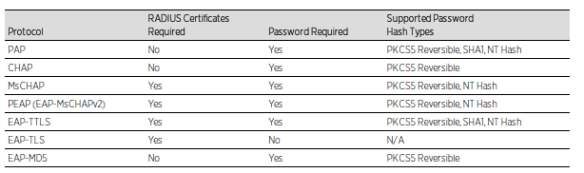
The chart below lists the hash types supported by each protocol for user password
encryption. Note that PEAP (TLS) is not supported for local RADIUS termination
and is only supported in a proxy RADIUS configuration. If passwords are required, you can then decide whether to use LDAP or local authentication for password verification.

8021xeap