
Filter ACL on VOSS

Following GNS3 simulation test to validate security ACL on VOSS. The goal is to only allow a range or specific IPs to communicate with a specific remote IP and to deny other IPs within the same VLAN subnet from communicating with other IPs inside and outside the VLAN.

# Filter Configuration

filter acl 101 type inVlan name “In vlan 101”
filter acl set 101 default-action deny
filter acl vlan 101 101

filter acl ace 101 1 name “arp req”
filter acl ace action 101 1 permit count
filter acl ace ethernet 101 1 ether-type eq arp
filter acl ace arp 101 1 operation eq arprequest
filter acl ace 101 1 enable

filter acl ace 101 2 name “arp resp”
filter acl ace action 101 2 permit count
filter acl ace ethernet 101 2 ether-type eq arp
filter acl ace arp 101 2 operation eq arpresponse
filter acl ace 101 2 enable

filter acl ace 101 3 name “192.168.101.10 to 192.168.101.20”
filter acl ace action 101 3 permit count
filter acl ace ethernet 101 3 ether-type eq ip
filter acl ace ip 101 3 src-ip eq 192.168.101.10
filter acl ace ip 101 3 dst-ip eq 192.168.101.20
filter acl ace 101 3 enable

filter acl ace 101 4 name “192.168.101.20 to 192.168.101.10”
filter acl ace action 101 4 permit count
filter acl ace ethernet 101 4 ether-type eq ip
filter acl ace ip 101 4 src-ip eq 192.168.101.20
filter acl ace ip 101 4 dst-ip eq 192.168.101.10
filter acl ace 101 4 enable

filter acl ace 101 5 name “Dst IP 10.10.10.1”
filter acl ace action 101 5 permit count
filter acl ace ethernet 101 5 ether-type eq ip
filter acl ace ip 101 5 dst-ip eq 10.10.10.1
filter acl ace 101 5 enable

filter acl ace 101 6 name “VLAN 190 Subnet”
filter acl ace action 101 6 deny count
filter acl ace ethernet 101 6 ether-type eq ip
filter acl ace ip 101 6 src-ip mask 192.168.101.0 24
filter acl ace 101 6 enable

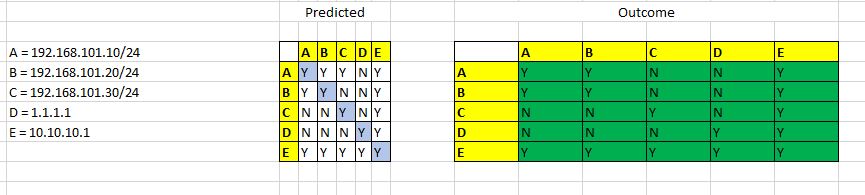
 

GNS3 Lab Setup for Filter Test
Test Criteria / Outcome

Creating a VRF in VOSS

Assume you want to segment part of your network into its own isolated piece by using a VRF, how would you do this with VOSS?

ip vrf itstaff vrfid 1

vlan create 999 name “ITStaff” type port-mstprstp 0

vlan members add 999 1/8

interface vlan 999

vrf itstaff

ip address 192.168.99.2 255.255.255.0

exit

VRF “itstaff” includes VLAN 999 name “ITStaff” and is the only VLAN created so far in the VRF and the VRF has its own routing table.

VSP-1100:1(config)#show ip route vrf itstaff
************************************************************************************
Command Execution Time: Fri Apr 09 09:46:41 2021 UTC
************************************************************************************
=====================================================================================================
IP Route – VRF itstaff
=====================================================================================================
NH INTER
DST MASK NEXT VRF/ISID COST FACE PROT AGE TYPE PRF
—————————————————————————————————–
192.168.99.0 255.255.255.0 192.168.99.2 – 1 999 LOC 0 DB 0

1 out of 1 Total Num of Route Entries, 1 Total Num of Dest Networks displayed.
————————————————————————————————–
TYPE Legend:
I=Indirect Route, D=Direct Route, A=Alternative Route, B=Best Route, E=Ecmp Route,
U=Unresolved Route, N=Not in HW, F=Replaced by FTN, V=IPVPN Route, S=SPBM Route
PROTOCOL Legend:
v=Inter-VRF route redistributed
VSP-1100:1(config)#

Note: To test connectivity from the CLI with ping or traceroute remember to specify the VRF on the command line otherwise it will use the GRT and results will not be as expected.


Extreme Cloud IQ

Extreme Networks Cloud IQ onboarding of switches is quite straight forward and can be really useful for zero touch provisioning.

A few places to check if having problems connecting to Cloud IQ.

Add the correct device type and its serial number into Cloud IQ.

On the switch make sure it has the correct time otherwise it may have problems connecting to the server.

Enable DNS client on the switch so that the iqagent can resolve the FQDN of the server.

Make sure the switch can reach the internet and any Firewalls are not blocking the traffic.

https://extremeportal.force.com/ExtrArticleDetail?an=000079814&q=IQ%20AGENT%20FOR%20VOSS

https://extremeportal.force.com/ExtrArticleDetail?an=000079428

https://extremeportal.force.com/ExtrArticleDetail?an=000079403

Firewall Configuration Guides:

https://extremecloudiq.com/support/NL_GCP.html

EXOS Jumbo Support

Extreme Networks EXOS switches support jumbo frames. The default MTU size is 9216 bytes.

To configure the MTU size used for switching use the following command:

configure jumbo-frame-size <1523-9216>

To enable jumbo frames on all ports use the following command:

enable jumbo-frame ports all

To display jumbo frame support and size for a specific port:

show port 1:1 info detail

Output will show the following when enabled…

Jumbo: Enabled, MTU=9216

Checking connectivity with Curl

Client URL (CURL) is available in Windows 10 and can be used to test client to server connectivity.

For example, it can be used to check connectivity to a remote server web page where we expect to get a 200 OK returned from the server.

The following command can be used to on the command line to test for a response from the web page and show the HTTP header:

curl -I <enter url of web page here>

curl –help

GNS3 Custom Console

Latest GNS3 uses Solar Putty for the console session and is not easy to copy screen output to a text file. Open up a second Custom Console session and choose Putty will allow you to capture the output to a log filename and the commands typed in Putty will also appear on the Solar Putty screen.

Extreme 5520 VOSS SSH

The universal 5520 switch needs some additional configuration to access the management protocols such as SSH as they are Firewalled off by a new security feature in the VOSS software, essentially configure the required management VLAN, the VLAN IP and add an IP route under NLS Configuration…

#

NLS CONFIGURATION

#

mgmt vlan 10
mac-offset 0
ip address 192.168.10.10/24
ip route 0.0.0.0/0 next-hop 192.168.10.1 weight 200
enable
force-topology-ip
exit

VOSS Redistribute Static to BGP

I have a static route for destination network 10.10.10.0/24 which I wish to redistribute into BGP from within VRF red, here is an example of how that redistribution works with a route-map and prefix-list on VOSS.

router vrf red
ip prefix-list “v10” 10.10.10.0/24 id 1 ge 24 le 24
exit

router vrf red
route-map “v10” 1
permit
enable
match network “v10”
exit
exit

router vrf red
ip bgp redistribute static
ip bgp redistribute static enable
ip bgp redistribute static route-map “v10”

exit

ip bgp apply redistribute static vrf red

Note: BGP configuration not shown is assumed to be in place.

Extreme 5520

Tested the new Extreme 5520 universal switch this week, which supports EXOS (default) or VOSS. VOSS does not support stacking so was a learning experience creating a stack of EXOS switches for the first time.

Stacking is quite straight forward and can be simplified by using easy-setup when run the enable stacking command on the master switch where I consoled onto. It is recommended to create a ring topology before doing this step.

After powering on the first switch I saw a message advising me to upgrade the software version.

I configured a management VLAN and gave it an IP address and moved a port into the VLAN for my laptop. I initially used TFTP to upgrade the XOS version but for the remaining switches I used a USB disk on USB2 at the rear.

Insert a USB in the USB slot and type show memorycard to make sure the USB is recognised.

Type ls /usr/local/ext to list the files on the USB disk. Enter download image memorycard summit_arm-31.1.1.3-patch1-1.xos to upgrade from USB instead of TFTP which is much quicker.

It is good practice to upgrade the software and ensure all switches are using the same release before stacking them.

Used 0.5m QSFP+ Passive Copper Cables 40GB to connect stacking ports at the front of the switch.

Inserted 5520-VIM-4X 4x10GE SFP+ in two different switches and created a static lag group with two ports (one from each VIM). See Extreme website for list of SFP/SFP+ supported in the VIM module.

enable sharing 1:57 grouping 1:57,2:57 algorithm address-based L2

When enabled RADIUS mgmt-access I could no longer SSH into the switch. I expected it to work and fallback to use local accounts as I had no RADIUS server to test with but was surprised to get access denied. To workaround this issue I created a fail-safe account and permitted SSH for it and then I could login when RADIUS was not connected.

Scapy QOS Ping

Example below uses Python Scapy module to generate an ICMP Request with the TOS value 184 (DSCP 46/EF) which is useful for testing QOS.

from scapy.all import *

send(IP(dst=’192.168.1.200′,tos=184)/ICMP(id=1,length=256,seq=57))

Can run from Python 3 in Windows. Open two Python 3 instances and send an ICMP packet with tos=184.

In the second session use the following to see sniff and filter on the interface and check the TOS field of the ICMP response.

from scapy.all import *

sniff(iface=’eth0′, filter=’icmp’, prn=lambda x: x.show())

Type show_interfaces() to list the network adapter names and replace “eth0” with the description of the adapter you wish to sniff.

If you get an undefined literal error it maybe due to the way the above example is copied and pasted so pay attention to the use of double or single quotes.